How to Fix Netflix When It Asks to Refresh Data
If you see a message on Netflix that says you need to refresh your data (or you see Error UI-800-3), it indicates that the Netflix app on your device has old or corrupted data saved. Think of it like a traffic jam inside your TV's memory; the app is trying to load a new movie, but old information is blocking the way.
Fortunately, clearing out this digital traffic jam is quite straightforward. Here are the most effective ways to clear this error and resume watching.
Step 1: Sign Out of Netflix Completely
Sometimes your login session simply expires or gets out of sync with Netflix's main servers. Logging out and logging back in forces the app to download brand new account data.
- In the Netflix app, navigate to the left to pull up the main menu, then scroll down to Settings or Get Help.
- If you cannot find the menu, you can use the secret remote code. Using your TV remote's directional arrows, press: Up, Up, Down, Down, Left, Right, Left, Right, Up, Up, Up, Up.
- A diagnostic screen will appear. Select Sign Out or Deactivate.
- Once you are signed out, wait a few seconds, then select Sign In and enter your email and password.
Step 2: The Hard Restart
If signing out doesn't work, the temporary memory in your device needs to be flushed out.
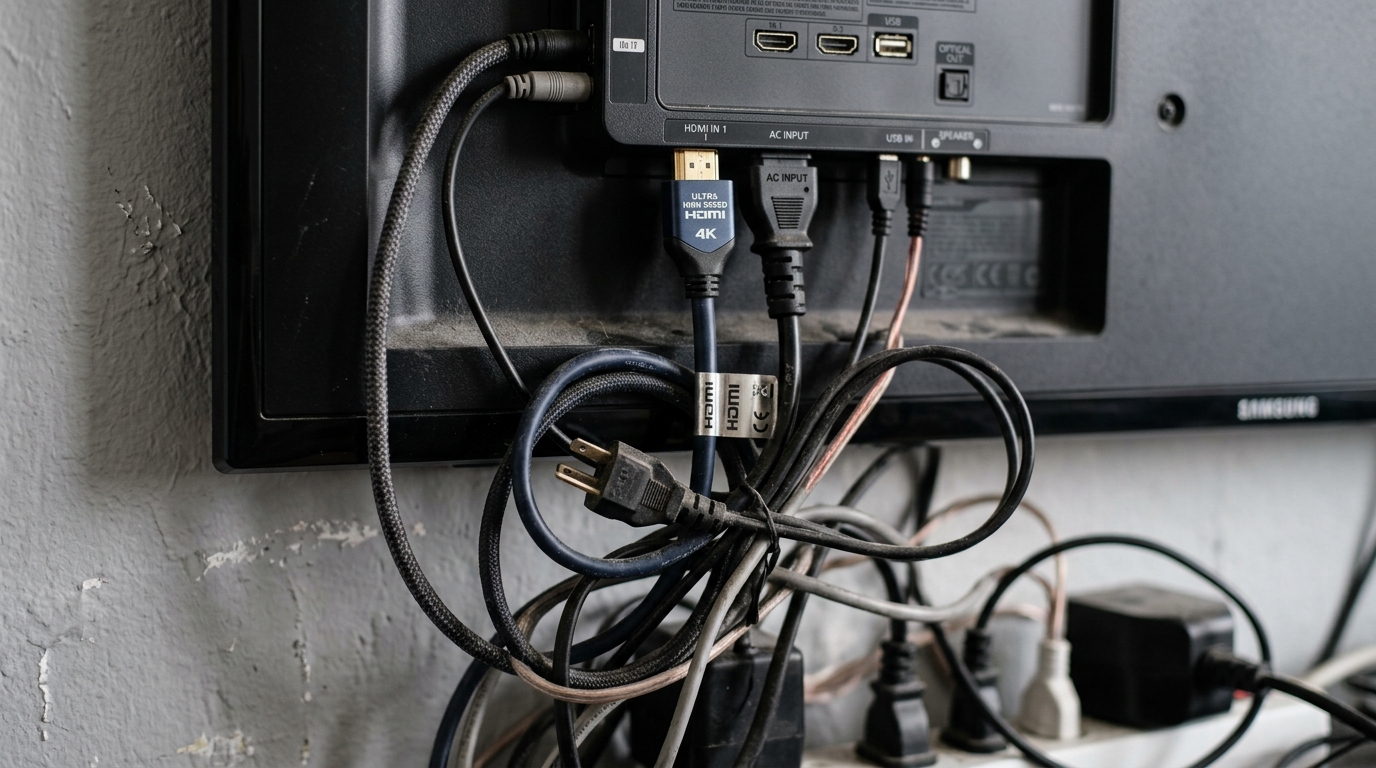
- Unplug your TV or streaming stick directly from the wall outlet. Simply turning off the TV screen with the remote is not enough.
- While the TV is unplugged, press and hold the physical power button on the TV itself for 5 seconds to discharge any remaining electricity.
- Leave it unplugged for a full 60 seconds.
- Plug it back in, turn it on, and try Netflix again.
Step 3: Clear the Netflix App Data
If you are using an Amazon Fire Stick, Android TV, or certain Smart TVs, you can manually clear the corrupted data without deleting the whole app.
For Amazon Fire TV:
- Press the Home button and navigate to the gear icon (Settings) on the far right.
- Select Applications.
- Scroll down and select Manage Installed Applications.
- Find Netflix in the list and click on it.
- Choose Clear Data, and then select it again to confirm.
- Note: You will have to log back into Netflix after doing this.
Step 4: Check Your Wi-Fi Network
Occasionally, this error pops up because the app cannot reach the server to verify your information.
- Try restarting your Wi-Fi router.
- If your TV is far away from the router, check if other devices (like your phone) have a strong signal in that room. If the signal is weak, you may need a Wi-Fi extender.
After performing these steps, your Netflix app should have a clean slate and function perfectly.