How to Fix an Apple TV Remote Disconnecting
The Siri Remote (both the black touch-glass version and the newer silver aluminum version) connects to the Apple TV via Bluetooth. If you are constantly seeing the "Remote Disconnected" notification on your screen, there is likely a Bluetooth interference issue or a battery problem.
Here is how to get a rock-solid connection again.
Step 1: Charge the Remote Completely
Unlike Roku or Fire TV remotes that use AA batteries, the Siri Remote has an internal rechargeable battery. When the battery drops below 20%, the Bluetooth connection becomes very weak and prone to dropping. Plug your Siri Remote into a Lightning (or USB-C) cable connected to a wall charger for at least 2 hours before continuing.
Step 2: Restart the Remote
You can force the remote's internal software to reboot without restarting the Apple TV itself.
- Press and hold the TV/Control Center button and the Volume Down button at the same time.
- Hold them for about 5 seconds until the status light on the Apple TV box turns off and on again.
- Release the buttons. You will see a "Connection Lost" notification, followed shortly by a "Connected" notification as it re-pairs.
Step 3: Move the Apple TV Box
Bluetooth is a relatively weak signal. If your Apple TV box is:
- Stuffed behind a large TV screen.
- Inside a metal cabinet.
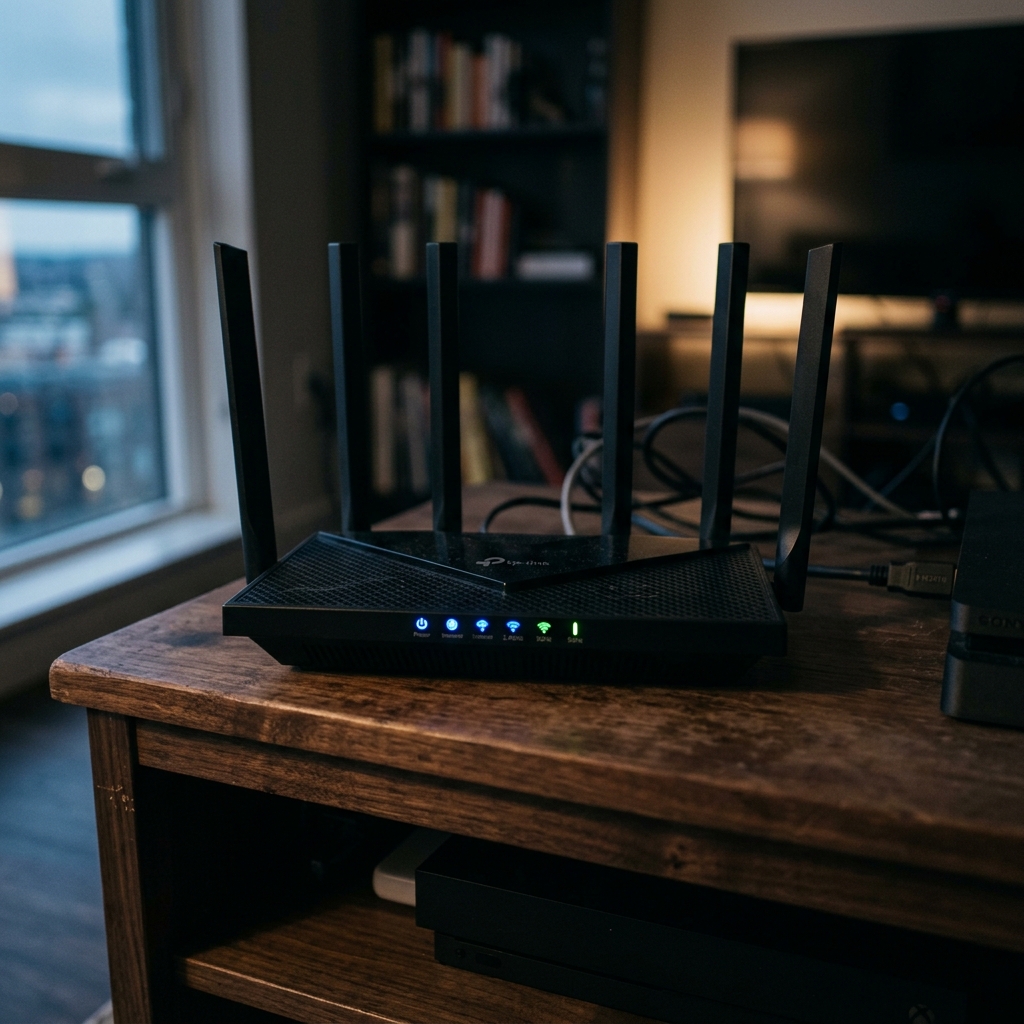
- Sitting directly next to a Wi-Fi router (which uses similar frequencies).
...the signal will be blocked. Move the Apple TV box out into the open so it has a direct line of sight to where you sit on the couch.
If none of these work, your remote may have suffered physical damage and will need to be replaced. Remember that you can always use the Control Center on your iPhone or iPad as a free backup remote!